

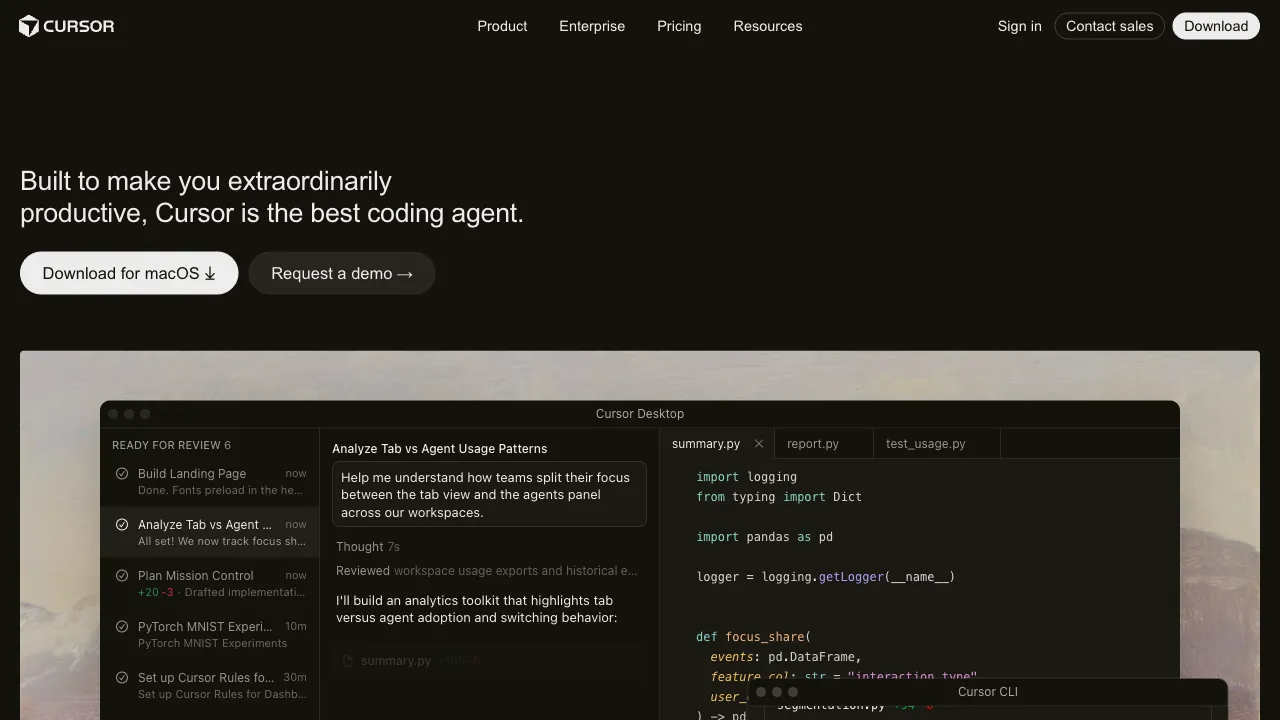
If you're a developer, it's hard to have missed the name Cursor over the past two years. It went from a niche tool to one of the most popular products in the programming community, and Cursor 3, released in April 2026, moved the main workflow from writing code to directing a fleet of agents. Hype can obscure reality, though — what does Cursor actually solve, where are its limits, when does it help and when does it not? That's what this page is for.
What Is Cursor?
Cursor is a code editor deeply customized based on VS Code. Its interface and keyboard shortcut system are nearly identical to VS Code’s, making the switching cost extremely low for those already using VS Code. However, it embeds AI capabilities into every stage of the editing process—not just “auto-completing the next line of code” like GitHub Copilot, but integrating AI throughout the entire programming workflow: generating code, understanding code, modifying code, explaining errors, refactoring, and documentation.
It connects to mainstream frontier models and to Cursor's own Composer 2.5 (released May 2026, up to a 1M-token context, able to hand a session between the IDE, the CLI and the cloud), and you can switch between them.
Core Features
Tab Auto-Completion
This is the most basic and commonly used feature. Cursor’s completion doesn’t just predict the next word; it predicts how you’ll write the next few lines or even an entire function. Unlike traditional code completion, it understands your current context—what function you’re writing, which libraries you’re using, what the contextual variables are called—and then provides meaningful blocks of code rather than random keyword associations.
In practice: open a new function, write the comment and function signature, and it often has already predicted the function body. Press Tab to accept, and the speed is impressive. For boilerplate code and repetitive tasks (such as writing CRUD operations, test cases, or API requests), the efficiency gains are significant.
Cmd+K: Inline Editing
This is Cursor’s most distinctive feature. Select a block of code, press Cmd+K (Mac) or Ctrl+K (Windows), and type the changes you want to make—“convert this function to async,” “add error handling to this function,” “change this loop to recursion”—and the AI directly modifies the code in your selection, highlighting the diff so you can accept or reject it.
This is far more efficient than chatting with an AI in a separate window and then copying and pasting, because the modifications happen directly within your code without needing to switch contexts.
Cmd+L / Composer: Chatting With Code
Cmd+L opens the chat sidebar, where you can add code files, snippets, or even entire projects to the context, then ask questions or request modifications. This is the entry point for handling more complex tasks—understanding an unfamiliar codebase, designing an implementation plan for a new feature, or troubleshooting a complex bug.
The Composer mode (Cmd+I) is a more powerful version that can make changes across multiple files simultaneously—for example, if you say “add a user login feature,” it can modify the routing file, Controller, database schema, and frontend form at once, presenting all the changes for your review in one go.
Codebase Understanding
Cursor supports indexing the entire codebase, enabling it to understand “where this function is called,” “what the dependencies of this module are,” and “how the project’s directory structure is organized.” This capability is valuable when taking over an unfamiliar project or making changes within a large codebase—you don’t need to spend days reading through the code; you can just ask.
How Does It Differ From GitHub Copilot?
This is the most common question. The two products have fundamentally different positioning:
Copilot primarily focuses on code completion: you write code, and it predicts the next step. It integrates into many editors (VS Code, JetBrains, Vim), has low invasiveness, and serves well as a supplement to existing workflows.
Cursor aims to redefine the entire programming workflow. It encourages active collaboration with AI—having it write, have it modify, and you review—rather than just passively accepting completion suggestions. Multi-file editing in Composer, codebase indexing, and inline modifications directly within the code are capabilities that Copilot lacks.
If you only need smarter auto-completion, Copilot paired with a good editor may suffice. If you want AI to participate in deeper stages of development, Cursor is worth trying.
Who Is Cursor Best For?
Full-stack and backend developers: Handling API development, database operations, and backend logic involves a lot of repetitive code, where AI assistance yields the most obvious benefits. Especially when taking over legacy code or needing to quickly understand an unfamiliar codebase, the Codebase Understanding feature is very helpful.
Frontend developers: Writing React components, handling styles, and implementing interaction logic—these codes follow fixed patterns, making Cursor’s completion highly accurate. If you describe a design mockup clearly, it can generate nearly complete component code.
Independent developers and rapid product validation: When one person handles both frontend and backend with limited time, using Cursor to compress boilerplate coding time allows focus on actual product logic. Many independent developers use it to compress MVP development cycles to less than half the original duration.
People learning to code: If you don’t understand what a piece of code means, select it and ask; if you want to know “what are the different solutions to this problem,” it can provide different implementations and explain the trade-offs. This instant feedback is much faster and more contextual than flipping through documentation or searching Stack Overflow.
Less suitable scenarios: If you’re working with highly customized domain knowledge (such as a niche domain-specific language or a very old tech stack), AI’s knowledge boundaries will limit its help; if your codebase contains significant confidential information, sending it to cloud-based AI poses compliance risks that require careful evaluation—Cursor offers a local mode, but with limited functionality.
Pricing
Cursor changed how it bills three times during 2026, so most pricing tables online are stale. Current tiers per the official pricing page and docs:
- Hobby: free, with a small allowance
- Pro ($20/month): includes $20 of third-party model usage
- Pro Plus ($60/month): includes $70 of third-party model usage
- Ultra ($200/month): includes $400 of third-party model usage
- Teams: split into two seat types on June 1, 2026 — Standard at $40/user/month and Premium at $120 (3x the price for 5x the usage); Enterprise on request
- Start: an India-only tier launched July 28, 2026 at ₹649/month, sitting between Free and Pro, without the third-party model pool
The structural change is that usage now sits in two pools. The Cursor models pool (Cursor Grok 4.6, Grok 4.5, Composer 2.5) comes with far more included usage; the third-party model pool bills at each model's API price and is included from Pro up, but not on Start. Teams and Enterprise pay an additional Cursor Token Rate of $0.25 per million tokens on top of third-party API pricing. Composer 2.5 itself lists at $0.50 per million input tokens and $2.50 output, with the Fast variant at $3 / $15. Check the official page for current figures.
Practical Considerations
AI-generated code requires review; do not commit it directly. Cursor generates code quickly, but quality varies—logic may look correct on the surface, but edge cases might be unhandled, tests insufficient, or it may not align with the project’s coding style. Treat AI as a pair-programming partner, not an outsourcer.
Prompts must be specific; vague descriptions yield vague code. Saying “help me write a login feature” might get you a basic example. Saying “use Next.js App Router, backend Prisma + PostgreSQL, implement email/password login, redirect to /dashboard on success, return error messages below the form on failure” will likely produce something directly usable.
Make good use of @file and @codebase references. In chat, you can use @filename to add specific files to the context, allowing AI to see your actual code rather than guessing.
Keep your codebase clean; AI also observes coding style. If your code is well-commented, clearly named, and structurally consistent, AI-generated code will tend to maintain that style; if your codebase is a mess, AI may just “go with the flow.”
A Personal Take
After using it for a while, most developers feel that while coding speed has increased, the time spent thinking about architecture and design hasn’t decreased—in fact, because you’re faster, you have more energy to think about “how this feature should be designed” rather than struggling with “how to write this piece of code.” This may be the most substantive change AI programming tools bring to developers’ workflows.
Is Cursor worth replacing your current editor? If you’re already in VS Code, the migration cost is nearly zero; trying it for a week will basically tell you whether it fits your workflow.