

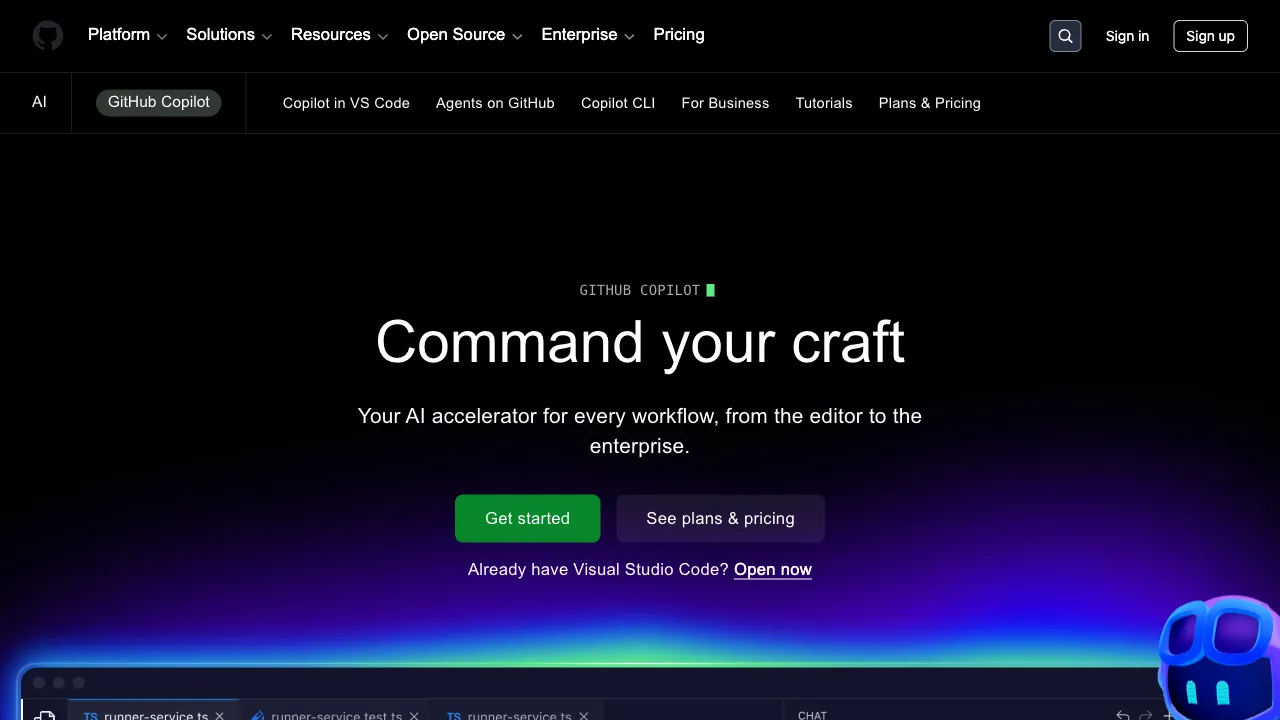
If there’s one AI tool that has genuinely transformed the daily workflow of developers, GitHub Copilot is the name you can’t ignore. It debuted as a technical preview in 2021 and was officially released in 2022, standing as the dominant product in the AI-assisted programming space before the emergence of Cursor. Even with today’s fierce competition, it remains the most widely used AI coding tool globally—GitHub’s official data shows over 1.3 million paid users are actively using it.
What is GitHub Copilot?
GitHub Copilot is an AI coding assistant co-developed by GitHub and OpenAI. Its underlying technology initially relied on OpenAI Codex (a code-specific version of GPT-3) and has since been upgraded to the GPT-4 series models. It integrates into mainstream editors as a plugin—covering VS Code, the JetBrains suite (IntelliJ IDEA, PyCharm, WebStorm, etc.), Vim/Neovim, and Visual Studio—thereby supporting the toolchains of the vast majority of developers.
Its core workflow is straightforward: as you write code, it analyzes the current context in real time to predict what you intend to write next. Suggestions appear as gray text; press Tab to accept them or Esc to ignore them.
Core Features
Code Autocomplete
This is Copilot’s flagship capability and the feature that first made many users feel, “This is genuinely different.” Unlike traditional code completion, which predicts the next keyword based on syntax rules, Copilot considers:
- The content of the current file
- Other files within the same project (Copilot reads your codebase as context)
- Your written comments
- Function names and parameters
…to predict entire blocks of meaningful code. If you write a comment like // Find the maximum value in an array and return it, it might generate the entire function for you.
This autocomplete shines in repetitive coding tasks—API calls, data processing, test cases, configuration files—creating a feeling of “you write 20%, AI fills in 80%.”
Copilot Chat
Beyond inline completion, Copilot offers a conversational Chat interface (accessible via the VS Code sidebar) where you can:
- Explain code: “What does this function do?”
- Debug: “Why is this throwing an error?”
- Refactor: “Make this code more concise”
- Generate tests: “Write unit tests for this function”
- Ask questions: “How do I read a CSV file in Python?”
In VS Code, Chat also supports the @workspace command, allowing you to use your entire codebase as context for your queries, which is ideal for understanding the structure and logic of large projects.
Copilot Edits (Multi-file Editing)
Similar to Cursor’s Composer feature, Copilot Edits allows you to select multiple files and describe a cross-file modification requirement. It then modifies multiple files simultaneously and presents the diffs for your review. This is a newer feature from GitHub that proves valuable when rapidly implementing features spanning multiple modules.
Copilot CLI
The command-line version of Copilot helps generate shell commands directly in your terminal. Forgot the parameters for a specific git command? Can’t remember how to write an awk script? Simply tell Copilot CLI what you want to do, and it will provide the command along with an explanation of each parameter.
Features on GitHub.com
Because Copilot is deeply integrated into the GitHub ecosystem, it offers several features directly on the GitHub website:
- PR Summaries: Automatically generates descriptions for Pull Requests, summarizing the changes made.
- PR Code Reviews: Provides suggestions on the code within a PR.
- Issue Analysis: Extracts key information from issue descriptions.
These features offer practical value for team collaboration, particularly the automatic generation of PR descriptions—many developers find writing PR descriptions tedious, so having AI generate a draft to refine saves considerable time.
How Does It Compare to Cursor?
This is the most common question. The two tools have fundamentally different positioning:
Advantages of GitHub Copilot:
- Integrates into your existing editor (VS Code, JetBrains), requiring no tool switching.
- Deep integration with the GitHub ecosystem (PRs, Issues, repository history).
- For large enterprises, the combination of GitHub Enterprise + Copilot offers comprehensive security, compliance, and management features.
- Relatively mature and stable, backed by extensive user feedback.
Advantages of Cursor:
- Stronger multi-file editing capabilities via Composer.
- Interface designed specifically for AI collaboration, offering a smoother experience.
- Superior codebase indexing, leading to better understanding of large projects.
- Allows users to choose their underlying AI models (e.g., GPT-4o, Claude).
In short: If your primary editor is from the JetBrains suite, Copilot is currently the only truly mature choice. If you use VS Code, both Cursor and Copilot are worth trying to see which fits your workflow better.
Pricing
Since June 1, 2026, Copilot has metered usage in GitHub AI Credits — one credit equals $0.01. Inline completions and next-edit suggestions remain unlimited and free on every paid plan; only chat, agent mode, code review, and the Copilot CLI draw down credits.
- Free: $0, with limited chat and agent usage
- Pro ($10/month): includes $15 of monthly credits
- Pro+ ($39/month): includes $70
- Max ($100/month): includes $200
- Business ($19/user/month) and Enterprise ($39/user/month, plus the required $21 Enterprise Cloud seat): credits pool across the organization, with overage billed at $0.04 per premium request
One timing note for organizations: GitHub's promotional allotment for existing Business and Enterprise customers covered June 1 to September 1, 2026. After that the allowance returns to standard levels, and because agentic workflows draw on the shared pool unpredictably, bills can jump from September onward. Separately, GitHub is deprecating selected Copilot models on October 2, 2026, and admins may need to enable alternatives through model policies. Check the official page for current figures.
Who Is It For?
JetBrains Users: If your main editor is IntelliJ, PyCharm, WebStorm, etc., GitHub Copilot is the most mature AI assistant choice, as Cursor currently does not support JetBrains IDEs.
Developers Who Don’t Want to Switch Editors: Many developers are deeply familiar with their editor’s configuration, shortcuts, and plugin ecosystems and don’t want to adapt to a new tool just for AI features. With Copilot, you install the plugin and start using it immediately—the lowest possible barrier to entry.
Developers in Enterprise Environments: GitHub Enterprise + Copilot offers enterprise-grade security commitments—code not used for training, private code protection, SAML SSO, etc.—which are mandatory requirements for large companies with compliance needs.
Teams Requiring Deep GitHub Integration: Features like automatic PR summaries, code review suggestions, and issue analysis have practical value for teams whose workflow centers around GitHub.
Practical Advice
After installing Copilot, many people’s initial reaction is, “It’s okay, but not as magical as they say.” This usually happens because:
Ensure it has enough context. Copilot’s quality heavily depends on context. If you’re coding in a file where all variable names are x, y, and z, it can’t guess your intent. If your code has clear naming, comments, and a tidy structure, its completion quality improves significantly.
Comment-driven development. Write comments describing what you want to implement first, then let Copilot generate the code based on those comments. This workflow is highly efficient for writing boilerplate code.
Don’t blindly accept every suggestion. Code generated by Copilot isn’t always correct, especially in areas with complex business logic. Pressing Tab rapidly doesn’t mean your code is right; code review and testing are essential.
GitHub Copilot is currently the most mature and ecologically complete AI coding assistant. Regardless of whether you ultimately choose it, understanding its capabilities and limitations is helpful for evaluating AI programming tools.