

Stable Diffusion prompts follow a specialized syntax logic that is entirely different from everyday writing. "masterpiece, best quality, 1girl, solo, long hair, blue eyes, school uniform, (detailed face:1.2), bokeh background, soft lighting"—this isn’t a sentence; it’s a stack of keywords where order matters, parentheses are used to boost weights, and negative prompts require separate handling. For users accustomed to natural language, this format can feel quite alien.
Even more troublesome is that prompt debugging is an iterative process. If you’re unsatisfied with the generated result and want to tweak something, you have to hunt through a long string of English text to find that specific word, delete it, or adjust the numbers inside the parentheses. Every change requires re-reading the entire string, making it easy to miss details or make errors.
The OPS Prompt Editor is a tool designed specifically to solve this problem: it transforms prompts from a single block of text into individual, independently operable "blocks," making prompt management visual and intuitive.
What is OPS?
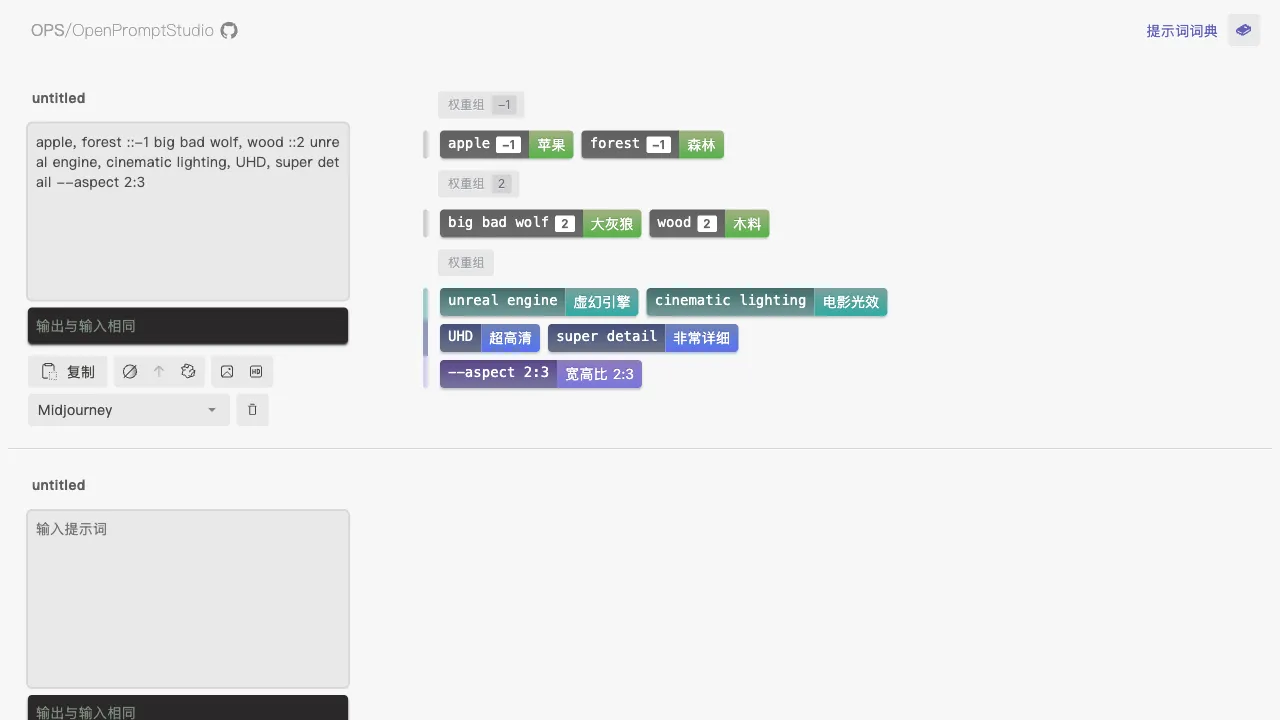
OPS (moonvy.com/apps/ops) is an AI image prompt editing tool developed by the Moonvy team, primarily aimed at Stable Diffusion users while also being compatible with some use cases in Midjourney. Its core design philosophy is to structure and visualize prompts—each keyword becomes an independent "block" that can be toggled on or off, dragged to reorder, and have its weight adjusted, shifting prompt management from "searching for words in text" to "manipulating building blocks."
Moonvy is a team focused on design efficiency tools. OPS was their specialized product launched during the AI art boom, gaining recognition within the domestic SD user community and recommended by many SD tutorial creators.
Core Features
Visual Block Editing
This is the core of OPS’s design. The interface displays each keyword or phrase as an independent "block" (Tag), using different colors to distinguish between types (subject description, style words, quality tags, negative prompts, etc.).
Drag-and-Drop Reordering: In SD, the order of prompts affects weight—words placed earlier carry higher weight. Adjusting order doesn’t require cutting and pasting text; simply drag the block to the target position. The operation is as intuitive as managing cards.
Individual Toggling: Each block can be independently enabled or disabled. When disabled, the word is excluded from generation but remains in the prompt list. This feature shines during A/B testing: if you want to see "how the image changes without the bokeh effect," click to disable it, generate, and compare; click to re-enable it, generate again, and compare. Precisely controlling a single variable is much cleaner than manually deleting words and trying to remember where they were.
Weight Adjustment: Click the weight control next to a block to increase or decrease its weight. OPS automatically generates the corresponding (keyword:1.2) or [keyword] format, eliminating the need to manually type parentheses and numbers.
Color Categorization: Different types of words are color-coded, making the structure of the prompt clear at a glance—which parts describe the subject, which are style modifiers, which enhance quality, and which are negative prompts. Color coding is more intuitive than plain text.
Chinese-English Translation
This is one of OPS’s most practical features for Chinese users. SD’s underlying models (particularly the CLIP text encoder) understand English better than Chinese, and many high-quality prompt collections are written in English. For users with limited English proficiency, this presents a clear barrier.
OPS includes built-in translation functionality with two modes:
- Full-Sentence Translation: Describe your desired scene in Chinese and translate it into an English prompt with one click.
- Word-by-Word Translation: Provide Chinese meanings for each word in an existing English prompt to help understand the function of each term.
Both modes benefit users at different stages: beginners use full-sentence translation to solve the "I don’t know how to write in English" problem, while experienced users use word-by-word translation to understand high-quality prompts they encounter.
Prompt Saving and Management
You can save common prompt sets as templates—such as "Standard Portrait Prompts," "General Anime Character Prompts," or "High-Quality Image Base Quality Tags." The next time you need them, load the template with one click and modify it on top of the base, avoiding the need to re-enter foundational words every time.
This feature is valuable for users with a fixed creative direction. For example, users specializing in realistic portraits often have a fixed framework for base prompts; saving templates saves significant time spent on repetitive input.
Built-in Prompt Library
OPS includes a categorized library of common keywords, organized by type (image quality, lighting description, composition, style, character description, etc.). You can click to add them directly to your current prompt.
This library is helpful for learning prompt syntax. Not sure how to express "good lighting"? Open the lighting library, see the options, and test which works best. This "exploratory learning" is more efficient than memorizing vocabulary.
Positive/Negative Prompt Partitioning
SD’s prompt system has two input areas: positive (what you want) and negative (what you don’t want), both equally important. Well-written negative prompts can drastically reduce weird generation artifacts. OPS provides a clear partitioned interface, with block-based visual editing supported in both areas to prevent confusion.
Why Visual Prompt Management Matters
For many SD users, the workflow is "copy someone else’s good prompt and tweak it." The problem with this approach is that facing a long string of English, you’re unclear about what each word does; changes are made by guesswork rather than systematic testing; and over time, you may not even remember why certain words were included.
OPS addresses the issue of "systematic prompt management"—allowing you to see exactly what’s in your current prompt, understand each word’s function, and control modifications precisely. This isn’t just about operational efficiency; it’s a process of understanding prompt logic that will help you build your own prompt expertise faster.
Comparison with Similar Tools
vs. Direct Input in SD WebUI: AUTOMATIC1111 WebUI uses a plain text box with no visualization. OPS’s block design offers a more user-friendly upper-layer interface, with significantly better debugging experience.
vs. Prompts.gg / PromptHero: These platforms lean toward prompt sharing and inspiration, helping you "find words" and "see others’ prompts." OPS is a prompt editor that helps you "manage and adjust your own prompts." The two serve complementary purposes.
vs. Promptomania: Promptomania is a prompt generation assistant that automatically assembles prompts by filling in various options, suitable for complete beginners who don’t know where to start. OPS is better suited for users with some prompt foundation who want to manage and debug more effectively.
vs. SD’s X/Y/Z Plot: SD WebUI has a built-in X/Y/Z Plot feature for systematically comparing the effects of different prompt parameters. It’s powerful but relatively complex to operate. OPS’s block toggles offer a lightweight version of testing, with simpler, more direct operations.
vs. Managing Prompts in Notion: Many SD users use Notion or spreadsheets to record and manage their prompts. This is a static management method. OPS is dynamic; you can edit directly within it and copy the result for immediate use, creating a more coherent workflow.
Who Should Use OPS?
SD Beginners: Unfamiliar with prompt structure and logic, beginners benefit from OPS’s block display, which makes prompt composition clear at a glance, helping build an intuitive understanding of prompt structure that is easier to grasp than plain text.
Users with Weak English Foundations: For those unfamiliar with English, the Chinese input + one-click translation feature lowers the barrier to writing English prompts, turning a hurdle into a bypassable obstacle.
Experienced Users Seeking Systematic Debugging: Those who can write basic prompts but want to systematically test each word’s effect and build their own prompt system will find OPS’s block toggles and categorized management perfectly suited to this need.
Creators Managing Multiple Prompt Sets: Users with multiple creative directions (e.g., working on both realistic portraits and anime styles) who need to maintain multiple prompt templates will find OPS’s save and load functions convenient for switching between them.
Those Wanting to Learn Prompt Syntax: With the built-in library and Chinese annotations, you can look up unfamiliar English words. Exploratory learning is more efficient than rote memorization.
Usage Recommendations
OPS is best used as a "prompt workspace"—build and adjust prompts here, copy the finalized prompt into SD WebUI for generation, review the results, return to OPS to adjust, and copy again. In this iterative loop, OPS handles management and debugging, while SD WebUI handles generation, each playing to its strengths.
It is recommended to create a few base templates in OPS: a base quality tag template (fixed combinations like "masterpiece, best quality"), style-specific templates (realistic template, anime template), and a common negative prompt template. With these bases, starting your creative prompts from templates rather than from scratch will be much faster.
Limitations
OPS is a tool for editing and managing prompts, not a generation engine itself—it cannot generate images directly. It simply organizes your prompts so you can copy them into SD or MJ for use. This imposes certain requirements on your workflow: you’ll need to switch back and forth between OPS and your generation tool, adding an extra step compared to typing directly into the SD WebUI.
For Midjourney users, OPS’s integration is less complete than its support for SD. Since Midjourney’s prompt syntax differs from Stable Diffusion’s, some features are not fully compatible.
Pricing
OPS offers its core features for free. However, the translation feature may have usage limits due to the costs associated with calling external translation APIs. For the most current policies, please refer to the official website.
The OPS Prompt Editor is a niche tool specifically designed to address the pain points of SD users, bringing greater professionalism to prompt management—a task often overlooked by many. If you use SD regularly, it’s worth spending ten minutes trying it out; it may well change the way you handle prompts in your daily workflow.