

The real pain point of translation isn’t “whether it’s accurate,” but “how many times it interrupts you.” On Windows, the standard workflow for translating a sentence is: copy → switch to browser → open translation site → paste → wait → copy result → switch back to original window. That’s two minutes per instance, and reading a technical document might require repeating this 20–30 times. These fragmented bursts of attention are the invisible, largest cost. STranslate’s entire design philosophy boils down to one word: minimal interruption—select text, press a shortcut, get an instant popup, use it, and leave. You never have to leave the window you’re working in.
What is STranslate?
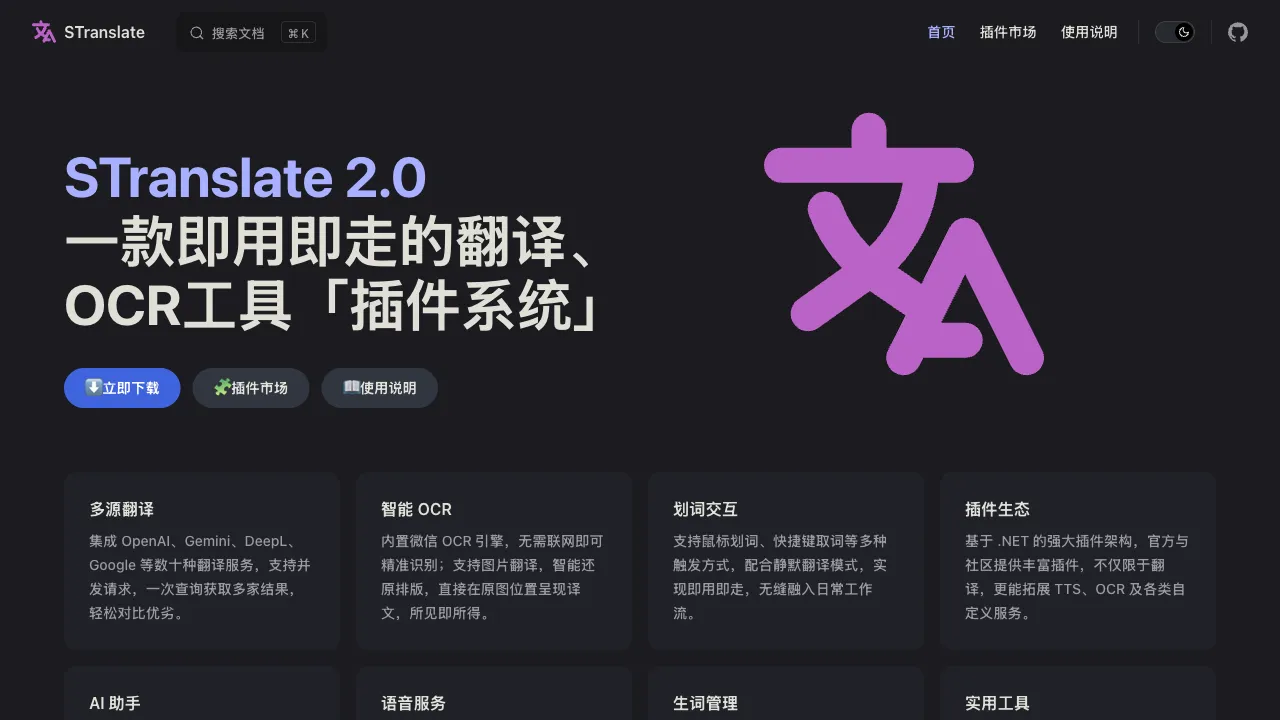
STranslate is an open-source, free Windows desktop translation tool (developer: zggsong, GitHub open source). Its core feature is “use-and-go” system-level translation: word selection translation, OCR screenshot translation, and multi-engine support. Its smartest design choice is not binding to a single translation engine—it can connect to traditional machine translation engines (Youdao/Baidu/DeepL) and various AI large model APIs (OpenAI/Claude/DeepSeek, etc.). Translation quality depends on the engine you choose, allowing you to scale your spending as needed.
Core Features
Word Selection Translation: The Core Experience
Select text in any Windows application and press the shortcut key (default is customizable). A small popup window appears instantly. When reading English documents, technical materials, or foreign-language web pages, you can check translations on the fly without switching apps or opening a browser. This “system-level, non-interrupting” experience is its fundamental value proposition compared to browser plugins (which only work in browsers): it works equally well in Word, PDF readers, and code editors.
OCR Screenshot Translation
Handles scenarios where “text cannot be copied”: text within images, English prompts in software interfaces, scanned PDFs, product packaging—press the shortcut to screenshot → OCR recognition → translation, all within ten seconds. This fills the blind spot that word selection translation can’t reach, offering high practical utility.
Multi-Engine: Freedom of Quality
Supports configuring multiple engines and switching between them at any time:
- Traditional Machine Translation (Youdao/Baidu/DeepL): Fast, with generous free quotas
- AI Large Model APIs (OpenAI/Claude/Gemini): Better context understanding, more accurate terminology, and more natural translations
- Domestic Large Models (DeepSeek/iFlytek, etc.): Stable access within China
When paired with an AI large model API, translation quality sees a significant leap compared to traditional machine translation—especially for professional documents and sentences with contextual ambiguity. Using system-level shortcuts to invoke large model translation delivers high quality without the interruption of “switching to the ChatGPT web page.” This is its essence: packing the power of large models into the convenience of word selection.
Translation History and High Customizability
Saves history (so you don’t have to translate the same phrase twice); shortcut keys, popup position, font, and display duration are all customizable. Heavy users should define their own workflows; this configurability is a testament to the sincerity of open-source tools.
Comparison with Similar Tools
vs Youdao Dictionary Desktop: Youdao also offers word selection translation, but its software is heavy, contains ads, and popups can occasionally be intrusive. STranslate is lightweight, open-source, ad-free, and engine-agnostic, making it a superior choice for geek-oriented users.
vs Browser Translation Plugins (Immersive Translate/Select Words): Plugins only work in browsers; STranslate is system-level and works in any application. This is an essential difference in form factor, depending on whether your translation needs are confined to the browser.
vs Direct Use of ChatGPT for Translation: Large model translation quality is high, but switching to a browser and opening a page each time interrupts your workflow. STranslate, when paired with an API, allows system-level shortcut invocation. The same quality, but much smoother—this is its most clever positioning.
vs DeepL Desktop: The DeepL client offers Ctrl+C+C shortcut translation and top-tier quality for European languages. However, the free version has character limits, and the paid version isn’t cheap. STranslate offers higher freedom when connecting to the DeepL API and allows switching to other engines at any time.
Who is STranslate For?
Developers reading English technical documents daily: Code comments, READMEs, Stack Overflow, technical docs—high-frequency scenarios where you frequently translate a sentence or two. System-level shortcut translation is the most direct solution; this is its core audience.
Researchers and Academic Workers: Instant word and sentence lookup for foreign-language papers is much faster than opening a dictionary.
Cross-border E-commerce Practitioners: Foreign-language product descriptions, buyer messages, platform rules—OCR screenshot translation is particularly useful for image-based text.
Office Workers Handling Foreign-Language Materials: Foreign trade, legal, and financial document processing; system-level translation is smoother than opening websites.
Installation and Configuration Recommendations
Download the installer from GitHub (zggsong/STranslate) and use it immediately. Recommended three steps: ① Set your preferred shortcut keys; ② Configure at least one AI large model API (DeepSeek offers free quotas, OpenAI is pay-as-you-go); this causes a qualitative leap in translation quality; ③ Set it to start with Windows, ready to go anytime. Configuring an API requires applying for your own Key; once configured, the cost of use is extremely low.
STranslate belongs to that category of efficiency tools—“once you’ve used it, you can’t go back.” It doesn’t aim to be the strongest translation engine (you choose the engine); it simply reduces the friction of “the act of translating” to near zero. If you interact with English content on Windows for more than half an hour every day, spending ten minutes installing and configuring it buys you countless moments of uninterrupted focus. This is a time investment that guarantees a profit.
Pricing
Open source and free — the tool itself has no paid tiers.
Cost sits with the translation services you connect: it supports dozens including OpenAI, Gemini, DeepL and Google, and each provider's key and billing is your own. Free allowances cost nothing; commercial APIs bill at each provider's rate.
OCR costs nothing either: a built-in engine recognises text without a network connection, and image translation restores the layout, placing translated text back in position on the original image.
Speech runs through engines such as Microsoft Edge TTS, also at no extra cost.