

There is a recurring communication nightmare between designers and clients. You show the client the initial website draft or product prototype, ask for feedback, and then receive: a few phone screenshots, a WeChat voice message saying "this feels off," or an email with an attachment saying "refer to my marked locations." Then you try to piece together this scattered information into a task list for revisions, only to find that your understanding of "that button" is completely misaligned. You end up confirming the details three times back and forth.
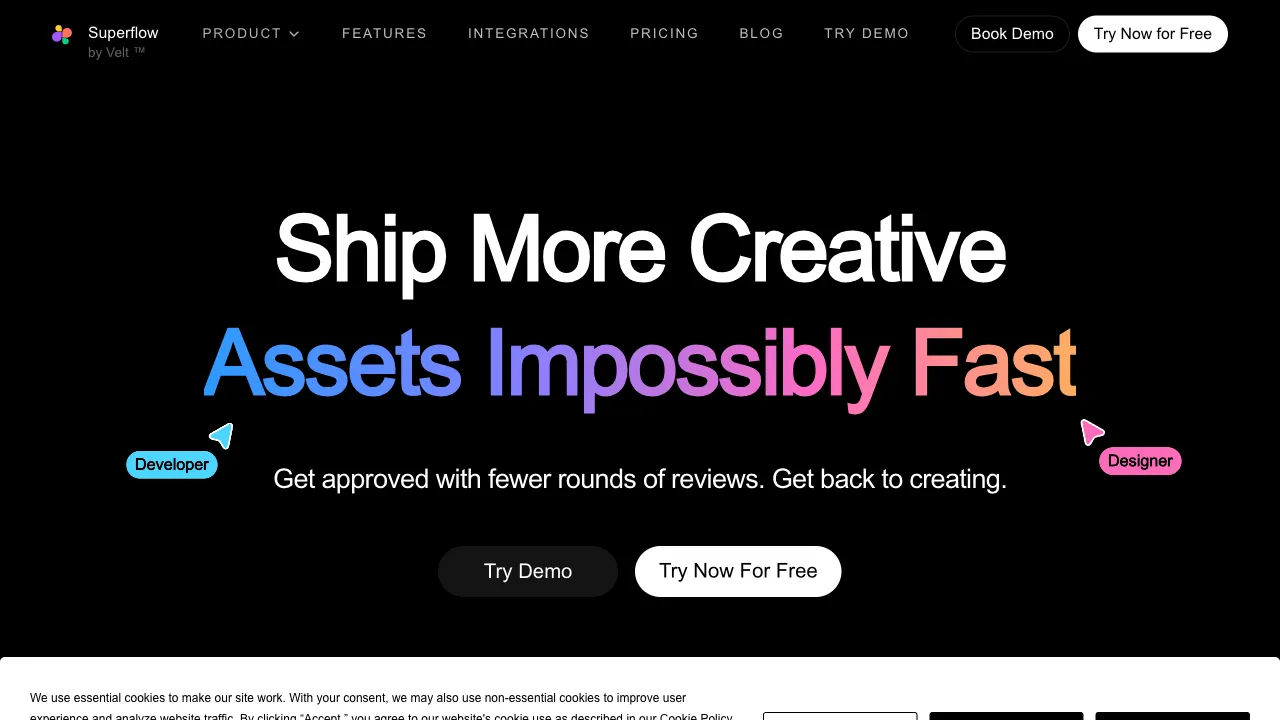
Superflow is a tool designed specifically to solve this problem. Its logic is simple: instead of having clients describe what needs to change via various external channels, let them click and leave comments directly on the webpage, precisely locating their feedback on the corresponding elements.
Now Positioned Around AI QA
Superflow has moved from "leave comments on a web page" to AI quality assurance: checklists become autonomous agents that scan for broken links, spelling errors, accessibility problems, and SEO basics, with findings still surfaced as pinned comments on the live site that clients can open through a shareable link without an account. The company's own framing is that "AI does the first pass; a person or the client signs off on every asset," which is what separates it from fully automated QA tools. Plans run from a free tier for solo studios up to an enterprise tier with SSO and SCIM; the homepage does not list prices directly.
What is Superflow?
Superflow (usesuperflow.com) is a website design collaboration and feedback tool. By embedding a snippet of code into your website, it allows team members and clients to leave precise comments, screenshot annotations, and video feedback directly on the live webpage. All feedback converges in a unified management interface, where designers can handle items one by one and track progress by status.
The tool is positioned to solve the "feedback chaos" problem in designer-client collaboration, unifying scattered revision requests from emails, instant messaging, and documents into the webpage itself—making it both precise and orderly.
Core Features Explained
Precise In-Page Annotation
Superflow works by providing a JavaScript code snippet that you embed into your website’s preview page or development environment. When invited users visit the page, they can switch to Superflow’s comment mode and click on any element on the page to leave a comment.
The value of this "precise positioning" is far greater than it appears. The problem with standard screenshot feedback is that when a client sends a screenshot with a circle drawn on it, you have to hunt for the corresponding location on the actual webpage. If the page layout has changed, the screenshot becomes even less useful. Superflow comments are bound to specific DOM elements; even if the page undergoes minor adjustments, the comments still map to the correct locations.
Comments remain on the page like annotations in a document—when viewing them, you see the actual webpage with markers, not screenshots or text descriptions. This represents an essential leap in intuitiveness.
Multiple Feedback Formats
Text-only comments are often insufficient. Some feedback is hard to describe accurately in words—subjective feelings like "this feels off" or interaction issues like "I clicked this button but it didn’t navigate." Superflow offers richer feedback formats:
Screenshot with Annotations: When commenting, you can capture a screenshot of the current state and draw circles, lines, or add text on it to clearly mark the issue location. This solves the problem of clients’ inconsistent screenshot quality; the annotation format is unified, preventing information distortion.
Screen Recording Feedback: Record an operation video to demonstrate the workflow and the problem encountered. For issues that require demonstration, such as "this disappears after I click that" or "the animation jitters when scrolling here," video feedback is far more efficient than any text description. Clients don’t need to install screen recording software; they can record directly in the browser.
Video Comments: Record a video via webcam providing "point-and-speak" feedback, where the client’s facial expressions and gestures are visible. This is suitable for emotional or subjective feedback (e.g., "this color feels too cold; our brand tone is warm").
Feedback Management and Progress Tracking
All feedback received through Superflow enters a unified management dashboard. Designers no longer need to dig through emails, chat logs, or documents; they simply open the dashboard to see all pending revision tasks.
Each comment can be set to a status: Pending → In Progress → Completed, providing clear visibility into the revision workflow. When a designer handles a piece of feedback and marks it as complete, the client can see that their input has been addressed, making the entire collaboration process transparent and orderly.
Task Assignment
For teams with multiple collaborators, specific revision tasks can be assigned to designated team members with deadlines. This prevents any feedback from falling into a state where "no one is following up."
Integration with Mainstream Tools
Figma Integration: If feedback requires returning to Figma to modify the design draft, you can create a Figma task directly from Superflow. There is no need to manually record or transfer information between the two tools.
Slack Integration: New comments automatically send Slack notifications. Designers don’t need to constantly refresh the Superflow dashboard; they receive natural alerts when feedback arrives.
Jira Integration: When development teams use Jira to manage tasks, Superflow feedback can automatically create Jira tickets, allowing design feedback to flow directly into the development workflow.
Comparison with Competitors
vs. Traditional Screenshot + Email: In the traditional method, clients screenshot and annotate, then email them for designers to modify. Superflow’s precise positioning and unified management significantly improve efficiency, and information does not distort during transmission—since feedback is on the webpage itself, there is no room for misunderstanding.
vs. Figma Comments: Figma’s built-in comment feature is designed for collaboration at the design file level, suitable for internal design team communication on drafts. However, clients face a barrier to entering Figma (requiring an account and a less intuitive interface) and can only comment on Figma files, not on deployed websites. Superflow works on any webpage; clients only need to visit a link with no account required.
vs. Loom Screen Recording: Loom allows clients to record video feedback, which is better than sending screenshots. However, the recorded video is linear content that isn’t precisely bound to page elements; viewers must play through the video to find the corresponding location. Superflow comments are precisely bound to page elements, allowing viewers to click directly to the spot.
vs. BugHerd: BugHerd is the closest competitor in positioning, also embedding feedback tools on webpages with highly overlapping features. The main differences lie in UI design details and feature completeness, with pricing in a similar range. If possible, trial both and choose the one that feels more natural to you.
vs. Feishu/Notion Document Comments: Some teams use shared documents to centralize revision requests, commenting on screenshots within the document. The problem with this approach is that someone must maintain the document manually; screenshots often don’t match the actual page, and the mapping between feedback and execution is indirect. Superflow’s feedback is directly on the webpage, eliminating the intermediate layer.
Who Should Use Superflow?
Web Design and Development Agencies: Client feedback is a mandatory step in every project and often the biggest source of efficiency loss. Superflow significantly boosts communication efficiency in this step; for teams running multiple client projects simultaneously, the time saved is substantial.
Freelance Designers: You need to collaborate with multiple clients, each with their own feedback process. Superflow professionalizes the client feedback collection process while keeping your revision tracking organized, reducing chaos like "Has this been changed?" or "Which version’s feedback is this?"
Product Design Teams (Internal Collaboration): It’s not just about client feedback; internal UI reviews are often inefficient too. Asynchronous commenting on webpages during PMF reviews or visual draft reviews is far more efficient than discussing in a meeting room while someone manually takes notes.
Designers Who Collaborate Closely with Non-Technical Clients: Clients may not know Figma or Jira, but they can click around on a webpage. Superflow downgrades the professional feedback process into a three-step operation: "visit link, click, type," making the barrier to client participation extremely low.
Testing in the Development Preview Stage: It’s not just for the design phase; preview websites completed by development also need feedback collection before launch. Embedding Superflow into preview links allows test feedback and design feedback to use the same workflow.
Usage Recommendations
Standardize Superflow access links within your project workflow. When sending initial drafts to clients, don’t send static screenshots; instead, send preview links with the Superflow code embedded. Encourage clients to get into the habit of "leaving comments directly on the webpage" rather than sending screenshots via WeChat. The first few times may require guiding the client on how to use it, but once the habit is established, the efficiency gains in feedback collection will be sustained.
Limitations
It requires embedding code into the website, so it cannot be used for sites where you cannot modify the source code (e.g., websites hosted on third-party platforms).
If the client’s team is completely unfamiliar with online tools, there is an initial onboarding cost. For particularly conservative clients, persuading them to change their feedback method may take time.
The feedback experience on mobile devices is inferior to that on desktops. For projects requiring mobile experience feedback, tool support is limited.
Pricing
Four tiers — Basic, Starter, Growth and Scale — running from free to about $449/month, scaled mainly by team size.
Tiers and prices change often, so confirm on the official pricing page before buying.
One easy mix-up: a separate product called Superflows AI exists — a B2B developer tool that puts AI copilots on SaaS APIs. It is unrelated to this website annotation tool and priced completely differently, so watch which one you are comparing.