

For a long time, the two characters for "green screen" were the only answer to video keying: if you wanted a person to appear in front of any background, you either had to set up a green cloth with two lights or manually trace every frame in post-production software until dawn. This was a craft exclusive to the film industry, leaving ordinary creators to look on in awe. Unscreen compresses this entire process into a single upload: drop your video in, and the background disappears automatically; no green screen required. Its pedigree guarantees quality—its creator, Kaleido AI, is the Austrian company that defined the image keying category with remove.bg (later acquired by Canva alongside remove.bg). Unscreen is essentially "the video version of remove.bg," a pure-blooded pioneer of its category.
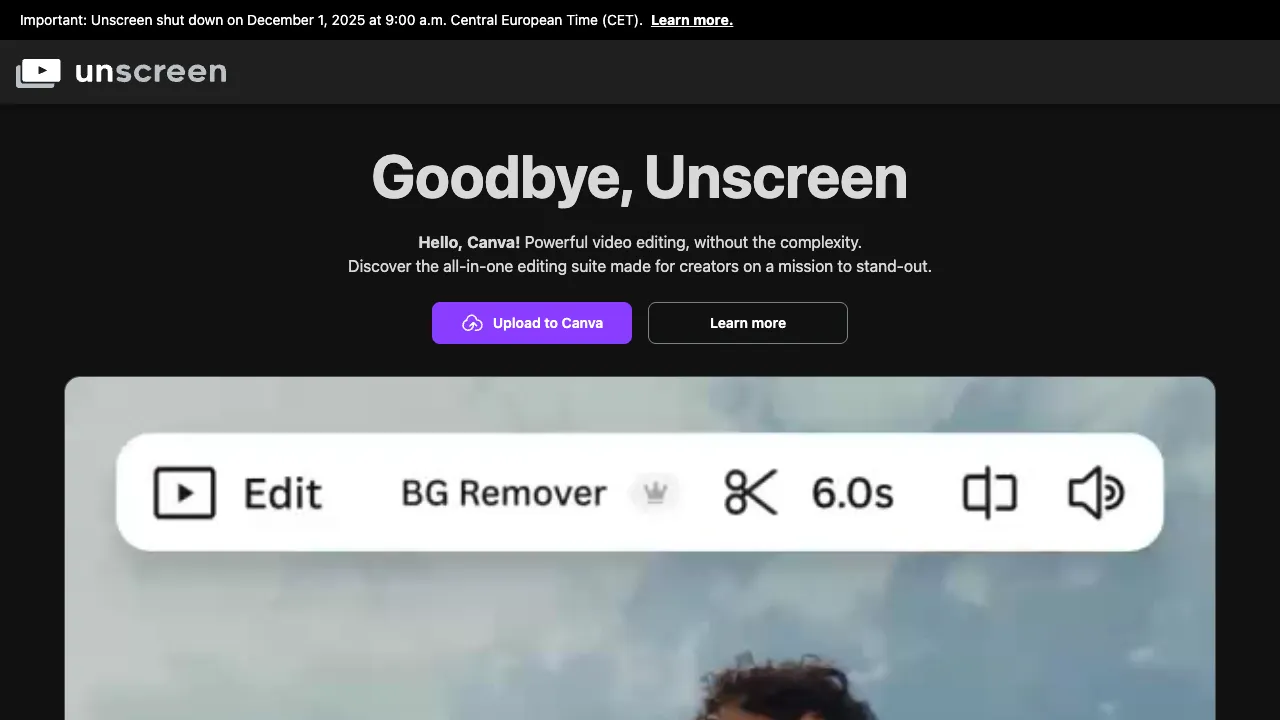
Entry point changed (checked 2026-09-06): www.unscreen.com now issues a permanent 301 redirect to Canva's video background remover page. Unscreen sits alongside remove.bg inside Canva and is no longer maintained as a standalone product; the capability notes below still apply, with Canva as the entry.
What is Unscreen?
Unscreen (unscreen.com) is an online AI tool for removing video backgrounds: upload a video (MP4, GIF, etc.), and the AI identifies the foreground subject frame by frame to strip away the background, producing a video file with a transparent background (in formats that support alpha channels) or directly replacing it with a new one. No green screen, no professional software, and no manual roto (frame-by-frame tracing)—the three major hurdles of video keying are eliminated by a single web interface.
Technically, video keying is an order of magnitude more difficult than image keying: not only must each frame be keyed accurately, the edges between frames must also remain stable and coherent (otherwise, the subject's edges will "flicker" or "boil"). Unscreen’s handling of temporal consistency is the foundation of its reputation.
Core Features
AI Video Background Removal
The main workflow is extremely simple: upload → AI frame-by-frame processing → preview → download. It handles subjects and standard shooting environments (even cluttered backgrounds) with stability, and its edge cleanliness ranks in the top tier among online tools. "You can key even casually shot videos" is precisely what makes it revolutionary compared to green screens.
Background Replacement
There are three destinations for the keyed video:
- Transparent Export: Video/sequence with an alpha channel, ready for free compositing in editing software—the interface for professional workflows.
- Preset Backgrounds: Instant replacement with solid colors, blurs, or gradients.
- Custom Backgrounds: Replace with any image or video background, instantly "teleporting" the subject to a new scene.
GIF Keying
Background removal for animated images—turn meme assets into transparent GIFs that can be overlaid on any content, a hidden weapon for meme creators.
Pro Capabilities
High-resolution output, longer durations, batch processing, and API access—the line between a toy and productivity lies in the paid tiers. Teams handling large-scale video processing should opt for API integration.
Use Cases
Talking-head videos with background changes: On-camera content is no longer limited to "that wall in your house." You can decide on the background after recording, reshuffling the order of creative freedom.
"Person + Content" explanatory videos: Key out the presenter and overlay them onto PPTs or screen recordings. This is the mainstream format for educational videos, and Unscreen provides a shortcut for non-editing experts to achieve it.
E-commerce product videos: Remove the background from product demonstration videos and overlay scenes or solid colors—a video version of the "white background image" craft.
Creative compositing: Combine footage shot at different times and locations into a single frame, making people "appear" in impossible scenarios—special effects budgets of the past are now just upload wait times.
High-definition virtual backgrounds: The image quality of real-time virtual backgrounds in meeting software is often rough; using Unscreen for post-production on recorded content offers an edge precision that is a notch above.
Comparison with Similar Solutions
vs CapCut Auto Keying: The built-in keying in this national editing tool is free and convenient; light needs can be closed within CapCut itself. Unscreen’s advantage lies in the flexibility of an independent tool (integrable into any workflow), professionalIntegration via transparent format exports, and API access—CapCut is sufficient for daily use by its users, while professional workflows and developer integrations should turn to Unscreen.
vs After Effects (Rotobrush): AE has a higher ceiling for keying, and its ability to refine complex scenes is the answer for professionals; the cost is subscription + skill + time. Unscreen captures the mass market that "doesn't need film-grade precision"—the exact same logic validated by remove.bg in the image domain.
vs DaVinci Magic Mask: DaVinci’s Magic Mask is powerful and available in the free version, but the software itself has a steep learning curve that deters ordinary users; the zero-threshold nature of online tools is a different world entirely.
vs remove.bg (from the same family): remove.bg handles images; Unscreen handles video. Start with the type of material, then compare edge handling and exports.
Who Should Use Unscreen?
Short-video creators and Vloggers: For creative needs like changing backgrounds and compositing, it offers the lowest threshold for implementation without a green screen—the core user base.
Educational content producers: The composite format of presenter + content visuals is an efficiency tool for daily updates.
E-commerce and marketing teams: Reuse product video assets by removing backgrounds; one clip adapts to multiple materials.
Developers: For products requiring video keying capabilities, the Unscreen API is a ready-made supplier.
Usage Tips
A "quasi-green screen" awareness during shooting can yield multiplied improvements in results: keep distance between the subject and the background, avoid wearing clothes that match the background color closely, and ensure even lighting—the physical laws of AI keying are consistent with the green screen era, just with much higher tolerance for error.
Hair, semi-transparent objects, and fast-moving edges remain technical challenges; check these areas closely in the final output. For important projects, test your footage type with the free tier first, and upgrade to Pro only if satisfied.
The duration and resolution limits of the free version are trial-oriented; serious production will essentially require a paid tier—compare this to the cost of outsourcing keying in post-production, and the subscription math becomes easy to justify.
Pricing
The free version supports low-resolution processing for short videos (for experience purposes); Pro subscriptions unlock high definition, long videos, batch processing, and API, billed monthly or annually, subject to the official website.
Unscreen continues the product philosophy of its sibling remove.bg: compressing a professional craft into a single upload, and compressing the price to what the masses can afford. If your video creation is still constrained by "backgrounds"—record yourself speaking for a moment, upload it, and watch the background cleanly disappear in seconds: in that moment, you will understand that the green screen era has truly turned the page.