

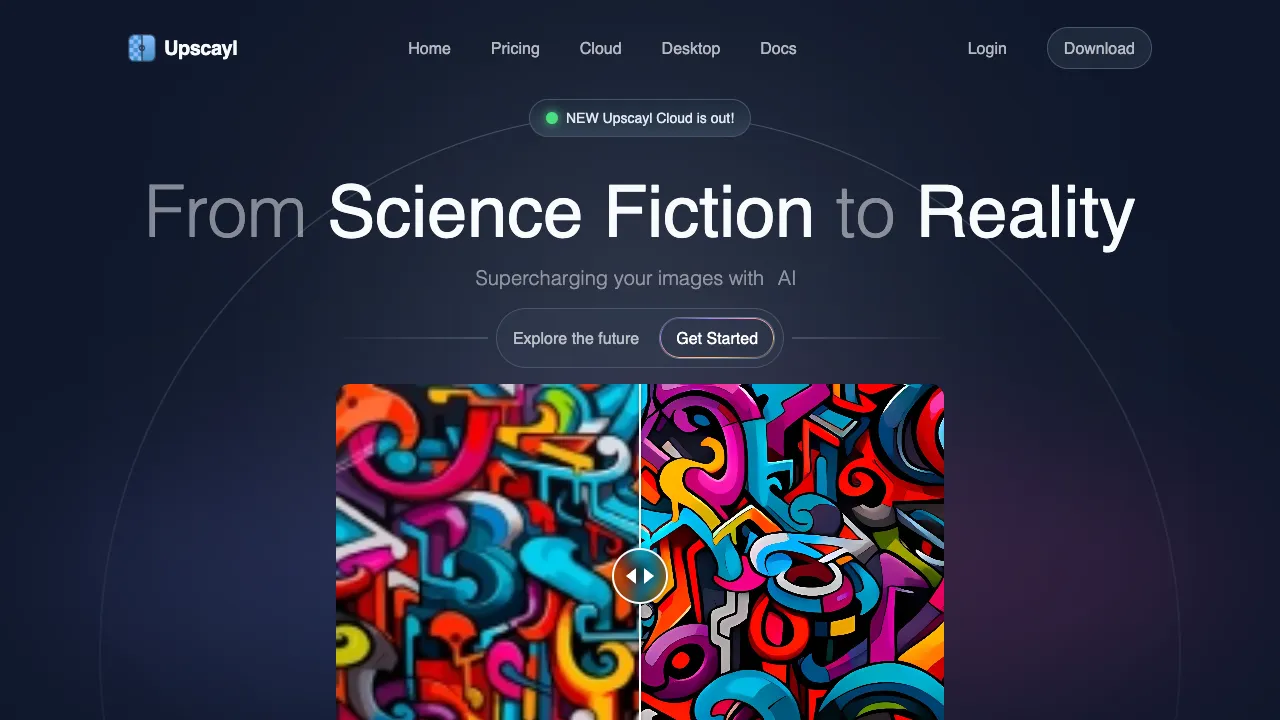
Tiny, blurry images are a ubiquitous problem, yet solutions have long been limited: traditional upscaling relies on simple interpolation, which often exacerbates blurriness rather than resolving it; professional software offers high-quality super-resolution but typically demands payment or requires uploading images to a server; and many online tools impose strict limits on their free tiers.
Upscayl addresses this with an AI-powered super-resolution solution that is entirely free, runs locally, and genuinely works well. Its positioning is clear: open-source, cross-platform, no image uploads, and no usage limits. It has all the features you need and none of the paywalls you don’t.
What is Upscayl?
Upscayl (upscayl.org) is an open-source AI tool for lossless image upscaling, supporting Windows, macOS, and Linux. It utilizes AI super-resolution models like Real-ESRGAN to process images locally on your GPU. It requires no internet connection and never uploads your images to any server.
Unlike traditional upscaling, AI super-resolution works by "intelligently guessing and filling in details." The model has learned from vast amounts of high-quality data, understanding what skin textures should look like or the details of a brick wall. When upscaling an image, it doesn’t just duplicate pixels; it infers what content should be filled in based on context. This ensures the upscaled image isn’t just larger, but clearer and richer in detail.
Core Features
AI Super-Resolution Upscaling
Select an image, choose a magnification factor, wait for processing, and download the high-definition version. Upscayl supports 2x, 4x, and even higher magnification levels, enhancing clarity while upscaling.
Processing results vary significantly across different image types:
Landscapes and Architecture: The effect is best here. Tree textures, building lines, and distant details see a noticeable boost in clarity. The upscaled images look natural, avoiding that "Photoshopped" appearance.
Portraits: Skin texture and hair detail recovery are quite good, with a significant overall improvement in clarity. If the original face is small (e.g., a distant subject), the clarity improvement after upscaling can sometimes exceed expectations.
AI-Generated Images: Upscaling AI-generated images with AI yields exceptional results. Images generated by Midjourney and Stable Diffusion typically have default resolutions of 1024×1024 or 1024×1536. Upscayl can upscale these to 4096×4096 (4x), making them suitable for printing or large-screen displays, with satisfying detail quality.
Anime and Illustrations: Dedicated anime optimization models are available, providing sharper lines and more vibrant colors, ideal for upscaling anime screenshots or illustrations.
Scanned Documents: It effectively improves text clarity. Text readability in scanned documents or photos of documents improves noticeably after upscaling.
Multiple AI Model Options
Upscayl includes several built-in super-resolution models, each optimized for different scenarios:
Real-ESRGAN: The best all-around model for general use. It performs well on most photo types and is the default recommendation.
ESRGAN: Focuses more on restoring texture details, making it suitable for images rich in textures, such as landscapes and architecture.
RealSR: Specializes in super-resolution for real-world photos, with specific adjustments for portraits.
Anime4K / Animesharpen: Optimized for anime images, offering sharp lines and accurate color reproduction, ideal for anime screenshots and illustrations.
You can test different models on the same image to choose the result that best fits your needs. The community also offers additional downloadable models to expand usage scenarios.
Batch Processing
Supports selecting multiple images for batch processing. This saves significant time for users who need to process large volumes of images (e.g., a batch of product photos or travel pictures) without having to handle them one by one.
Local Execution, Complete Privacy
All processing is done on your local GPU; images are never uploaded to a server. This is particularly important for:
- Processing personal or family photos with privacy concerns
- Handling screenshots of internal corporate documents
- Processing files containing personal information
- Commercial environments requiring strict data security
While not uploading data might sound like a standard feature, many "free" online tools achieve this by uploading your images to their servers. Upscayl completely avoids this issue.
Customizable Output
You can set the output format (PNG, JPG, WebP), adjust compression quality, and choose the output directory. These options allow users to balance image quality and file size according to their specific use case, rather than being limited to a single fixed output format.
Hardware Requirements
Upscayl’s core dependency is GPU acceleration. Processing speed and quality are directly related to your graphics card performance:
NVIDIA GPUs: Best support via CUDA acceleration. Most NVIDIA dedicated GPUs run smoothly, with 4GB+ VRAM recommended for stable operation.
AMD GPUs: Supported via OpenCL. Performance is not as strong as NVIDIA’s CUDA but is usable in most cases.
Intel Integrated Graphics: Can run the software, but speeds are slower. Processing a single image may take minutes rather than seconds.
No Dedicated GPU (CPU Mode): Theoretically possible, but extremely slow. Not recommended as a primary usage method.
Minimum Configuration: A dedicated GPU with 4GB VRAM. Upscaling a 1080p image to 4K takes approximately 10–30 seconds. High-end GPUs (e.g., RTX 3070 or better) typically complete this in under 5 seconds.
Comparison with Competitors
vs Topaz Gigapixel AI: Topaz Gigapixel is the industry benchmark for professional image upscaling, offering excellent quality and a dedicated professional user base. However, it requires purchase (approx. $99 one-time or subscription), making it significantly more expensive. Upscayl is completely free; for personal and non-commercial use, the quality gap is negligible, making it the best cost-effective alternative.
vs Adobe Photoshop Super Resolution: PS’s Super Resolution feature offers good quality, comparable to AI super-resolution. However, PS requires an Adobe Creative Cloud subscription (approx. ¥200/month), resulting in high costs. Upscayl is free; for users who only need image upscaling, there is no need to pay a PS subscription for just this one feature.
vs Online Super-Resolution Services (Bigjpg, Let's Enhance): These online tools require no local GPU and process images via upload. However, their free tiers have daily usage or resolution limits, and unlimited use requires payment. Additionally, uploading images to servers poses privacy risks. Upscayl runs locally with no usage limits and no privacy concerns; for users with a dedicated GPU, Upscayl is clearly the more sensible choice.
vs Waifu2x: Waifu2x is a super-resolution tool specifically designed for anime images, performing exceptionally well in that niche. Upscayl covers a broader range and also includes dedicated models for anime, while handling regular photos effectively, making it a more versatile choice.
vs Mobile AI Super-Resolution: Many smartphone camera apps feature AI image enhancement (e.g., Samsung AI Remaster, Apple’s processing engines). While convenient, their processing capabilities are limited, and results are often only viewable on the phone screen. Upscayl can produce images with high-resolution print quality.
Who Should Use Upscayl?
AI art users: Use Upscayl when an image needs a larger size, then check for oversharpening or altered details. For printing, also check resolution against the final dimensions.
Photography Enthusiasts: Low-resolution photos from older cameras, blurry long-distance shots from phones, or noisy images taken in low light see significant clarity improvements after processing with Upscayl.
Old Photo Restoration: Scanned film photos or images from old digital cameras can have their resolution and clarity enhanced, giving old photos a "new life."
Designers and Content Creators: When found stock images lack sufficient resolution for large-scale printing, Upscayl can upscale them to the required print resolution without noticeably degrading quality.
Privacy-Conscious Users: Those unwilling to upload personal or corporate images to third-party servers will find that Upscayl’s local execution completely alleviates these concerns.
Users Seeking Zero-Cost Tools: If you have a suitable GPU and need image upscaling capabilities, Upscayl is the best choice for zero cost and unlimited usage.
Installation and Usage
The official website (upscayl.org) provides installers for Windows, macOS, and Linux. Simply download and install. macOS users should note that they may need to allow third-party applications to run in their security settings.
The interface is intuitive: select images on the left, choose models and parameters on the right, select the output directory at the bottom, and click process in the center. The first time you use a specific model, it will download the model files (ranging from tens of MB to 200MB); subsequent uses do not require re-downloading.
Pricing
The desktop app is free and open source, hosted on GitHub, with no usage limits. Upscayl Cloud, a hosted paid service, was added in 2026 — check the official pricing page for its tiers. Running the desktop app locally still costs nothing. There are no paid tiers or usage limits; if you have a GPU, you can use it without restriction.
Upscayl is the kind of tool that becomes indispensable once you’ve tried it. You’ll likely be surprised by the quality it delivers for free, and whenever you encounter an image that’s too blurry or low-resolution, it will be your first go-to solution. If you ever need to upscale small or blurry images, Upscayl should be your starting point.