

There is a nightmare scenario that has circulated in the design community for years: A client sends over their company logo to be printed on a three-meter-wide display board—the attachment is an unknown-source 200×200 pixel PNG, and the original design files were lost long ago on a former designer’s old computer. Zooming in on a bitmap results in mosaicing; it is the physical fate of pixels. Yet printing, engraving, and large-format output all require vector formats. "Redraw it" is the traditional answer, but it is expensive and slow.
Bitmap-to-vector (tracing) technology was born for scenarios like this, but the experience of using traditional algorithmic tracing leaves much to be desired: Illustrator’s Live Trace requires tweaking a host of parameters, often resulting in paths with exploding nodes and ragged edges; cleaning up those nodes takes no less time than redrawing them. Vectorizer.AI has reimagined this process with AI, compressing "tweak parameters + manual cleanup" into "upload, wait a few seconds, download."
What is Vectorizer.AI?
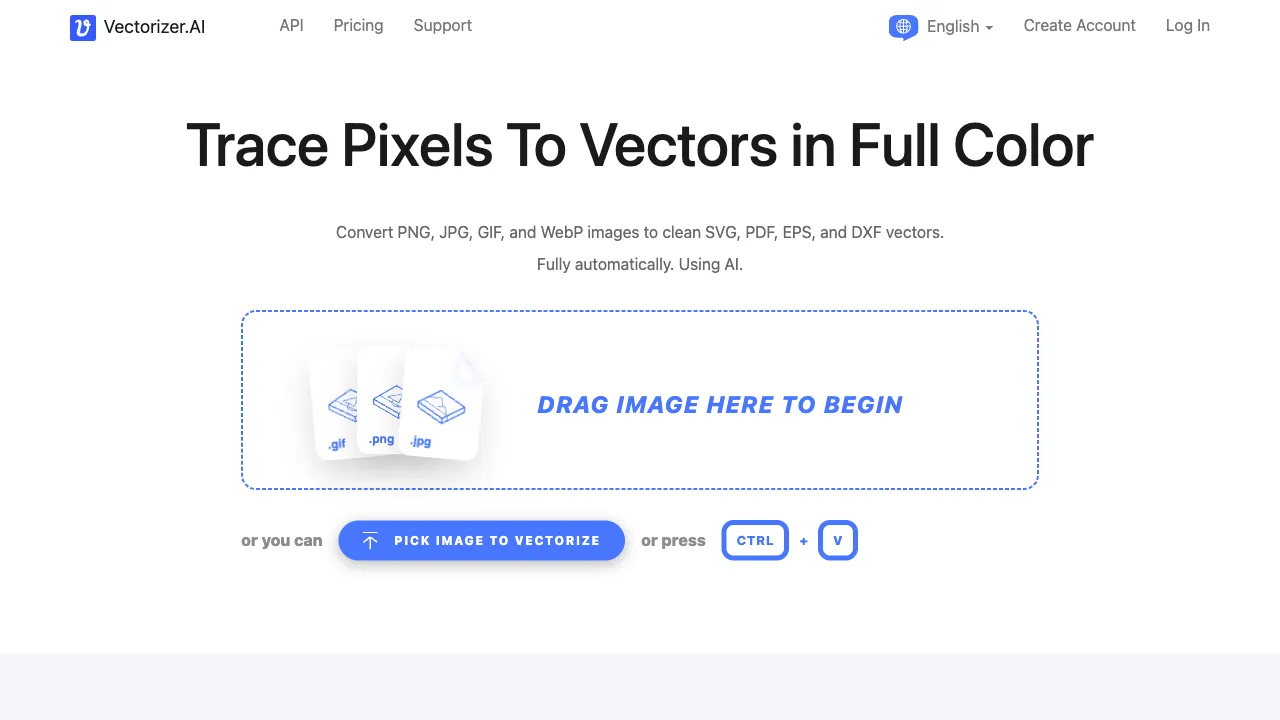
Vectorizer.AI (vectorizer.ai) is an online AI-powered bitmap-to-vector tool: upload pixel-based images like JPGs or PNGs, and the AI automatically traces them to generate vector files in formats like SVG. The entire process happens in your browser, with no software installation required.
It was built by a seasoned image processing team behind well-known background removal tools. Its core selling point is using deep learning to replace traditional edge-detection algorithms—the AI doesn’t just "see color boundaries," but to some extent "understands graphics": an arc is recognized as a true Bezier curve rather than dozens of jagged line segments stitched together, and a rounded rectangle outputs clean geometric paths. This directly impacts result quality: fewer nodes, smoother paths, and cleaner files.
Features
AI-Powered Smart Tracing
The gap between traditional tracing and this tool becomes apparent in the details:
- Curve Quality: Smooth curves are output as mathematically clean curve segments; edges remain smooth even when zoomed in, rather than appearing as "pseudo-curves" formed by dense anchor points.
- Color Layering: Automatically identifies color block structures with reasonable layering, making it easy to change colors and edit later in vector software.
- Noise Resistance: Tolerant of JPG compression noise and slightly blurry source images; it won’t faithfully trace compression artifacts into a mess of fragmented paths—a common pitfall for traditional algorithms.
Interactive Result Preview
After conversion, a bitmap/vector comparison view is provided. You can zoom in to check every detail and confirm the quality before downloading. Some parameters (such as detail level and color count) are adjustable, offering room for fine-tuning if you’re unsatisfied with the result, rather than forcing you to accept a one-shot output.
Multi-Format Output
Primarily outputs SVG, while also supporting PDF, EPS, DXF, PNG, and other formats—EPS/PDF integrate with printing workflows, while DXF connects with laser cutting and CNC engraving, covering the main downstream scenarios for vector files.
High Editability of Output Files
The generated SVGs open clearly in Illustrator, Figma, and Inkscape, with distinct layer and path structures ready for further refinement. This is crucial: AI tracing is a means to "quickly get a 90-point baseline file"; the final 10 points of refinement still require vector software. Whether the output file is easy to edit directly determines whether the entire workflow holds up.
Typical Use Cases
Logo Rescue: When you only have a low-res PNG logo but need a vector version for printing, engraving, or large-format output—this is the tool’s primary use case. Simple logos usually convert with high quality and can be delivered after a quick check.
Icon Vectorization: Found a PNG icon you want to use on a website (SVGs are small in size, infinitely scalable, and color-editable)? One-click conversion is much faster than redrawing.
Digitizing Hand-Drawn Sketches: Line art or handwritten text drawn on paper can be scanned or photographed, converted to SVG, and imported into design software for further processing—a common shortcut for illustrators and font designers.
Printing Material Production: When your materials only have bitmap assets but the print shop requires vector files, convert them, check the details, and send them to press.
Laser Cutting/Engraving: DXF output directly meets the path requirements of cutting equipment, making it practical for makers and custom fabrication scenarios.
Limitations: What Images Are Not Suitable for Vectorization
This is less a limitation of the tool and more a boundary of vectorization technology itself. Understanding this in advance saves you from futile attempts:
Photos are not suitable for vectorization. Photos contain millions of colors with continuous gradients. Forcing them into vectors creates massive numbers of color-block paths—resulting in huge file sizes, bizarre visuals, and zero utility. The sweet spot for vectorization is graphics with "limited colors + clear edges": logos, icons, flat illustrations, and text. If you want a "vector style" from a photo, the correct approach is to have an illustrator redraw it or use stylized AI generation, not tracing.
Complex details will be simplified: Fine textures and fragmented elements may be lost or merged during conversion. Always zoom in to check critical details after conversion.
Source image quality sets the ceiling: For severely blurry or low-resolution source images, the AI can only "guess" the contours; guessed curves that are wrong require manual correction. The cleaner the source image, the closer the output comes to being repair-free.
Comparison with Other Solutions
vs Adobe Illustrator Live Trace: An AI built-in feature with the finest parameter control and highest potential ceiling when paired with manual adjustment; but it requires a subscription (Creative Cloud is pricey) and operational experience. Professional designers with AI subscriptions often use both—Vectorizer for quick baseline drafts, Illustrator for refinement. For users without a subscription, Vectorizer alone can handle most needs.
vs Vector Magic: A veteran professional tool for bitmap-to-vector conversion with a good reputation for quality, but it is paid (subscription or per-use). Vectorizer.AI’s AI approach is now on par in quality, with a lower price barrier, giving it an edge in overall cost-effectiveness.
vs Inkscape Trace: The built-in tracing feature of free open-source software. It costs nothing but uses traditional algorithms with average result quality, and requires installing software and learning operations. For lightweight needs, using the web-based Vectorizer is far more convenient.
vs Other Free Online Conversion Sites: Many "free png to svg" websites use crude traditional algorithms; their output quality is not in the same league as Vectorizer.AI. Once you’ve compared them, you won’t go back.
Who Is It For?
Designers: For firefighting scenarios where "you only have bitmaps, no source files," and for rapid vectorization of icon assets.
Front-End Developers: For SVG-ifying web icons; handle it yourself in three minutes without waiting in line for design resources.
Printing/Advertising Production Professionals: Client-supplied assets are always missing vector files; this is industry daily life. A high-quality conversion tool is essential for your livelihood.
Makers and Craftsmen: For preparing graphic paths for laser cutters, engraving machines, and CNCs.
General Users: Occasionally need to zoom in on a simple graphic without pixelation; accessible directly via web browser.
Pricing
Testing and previewing are free. The policy for downloading full results has undergone adjustments (it was free for a long time before shifting to a subscription model). Current free tiers, subscription prices, and commercial licensing terms are subject to the official website. Even if paid, it remains in a highly cost-effective position relative to Vector Magic and Adobe subscriptions.
Bitmap-to-vector is one of those needs you might not use for a year, but when you do, it’s urgent. Keep Vectorizer.AI in your bookmarks. Next time that 200-pixel logo nightmare strikes, the only thing standing between you and "redrawing it" is a few seconds of upload time.