

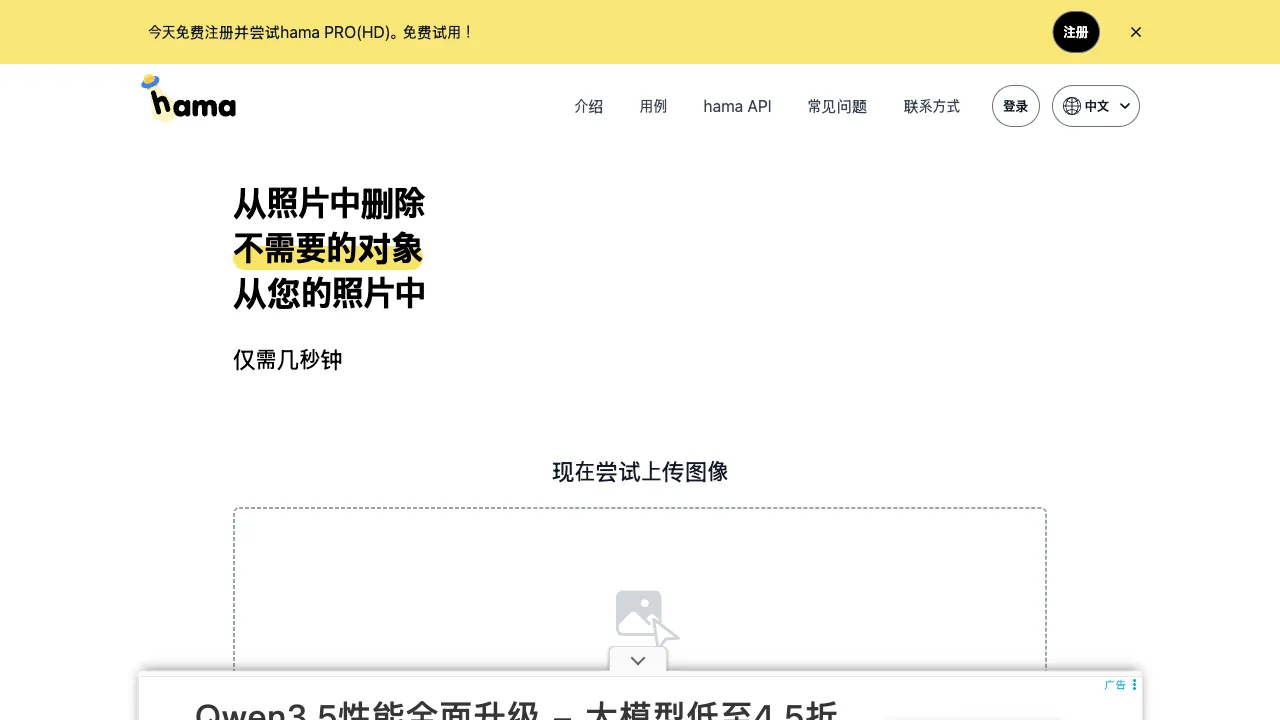
There are two product philosophies in the world of utility software: one believes "the more features, the better value," with twenty entry points on the homepage; the other believes "perfecting a single action," where the entire product is just a canvas and a brush. Hama is a specimen-level work of the latter philosophy—open hama.app, and you’ll find no registration wall, no feature menu, no tutorial pop-ups, just one upload box: drag in an image, paint over what you want to remove, and you’re done. Even its name carries this vibe (the Japanese word for "hippo," evoking a cute, casual simplicity); it aims to do only one thing: make unwanted elements in your photos disappear seamlessly.
What is Hama
Hama (hama.app, with a Chinese interface) is an online tool focused on AI object removal: based on inpainting technology, you paint over the target (pedestrians, clutter, watermarks, power lines) on the image, and the AI analyzes the surrounding background to intelligently fill it in, producing a clean result as if "that thing never existed."
Among similar global tools (such as Cleanup.pictures), Hama stands out for its minimalist experience + Chinese-friendly interface, acting as a specialty shop for the single action of "erasing"—this extreme focus is precisely why it’s worth bookmarking: when you need to erase, you want the shortest path.
Core Features
Brush-Based Erasure
The entire main workflow: adjust brush size → paint over target → AI instant completion → repaint if unsatisfied → download. Zero learning curve; first-time users can get results within thirty seconds.
Objective patterns of effect (shared by all inpainting tools):
- Simple and natural backgrounds (sky, water, grass, bokeh): nearly seamless, the sweet spot
- Regular textures (brick walls, tiles, text signs): pattern continuity is easily exposed
- Large-area erasure: the larger the area the AI must "invent," the less stable the quality
Multiple Erasure Modes
One step ahead of similar tools, Hama offers different processing modes based on content type: General Mode, Fill Mode, and Text-Specific Mode (optimized for watermarks, subtitles, and labels). This specialized mode segmentation increases success rates for the high-frequency need of text removal compared to "one-size-fits-all" tools.
High-Resolution Processing
Processing directly at the original image resolution rather than downscaling ensures output quality worthy of serious use—a commendable feature among free online tools.
Use Cases
Tourist Photo Rescue: Saving compositions in crowded scenic spots; a mainstream scenario for erasure tools.
Watermark and Subtitle Cleanup: Old marks on your own images, screen-captured subtitles, platform account watermarks—copyright red lines are clear: only process images you have rights to; removing others’ copyrighted watermarks for use is infringement, and while the tool bears no responsibility, the user does.
E-commerce Image Cleaning: Removing power cords, reflectors, or prop traces from product photo backgrounds; the final cleaning step before publishing.
Old Photo Organization: Removing era-specific clutter from the background of scanned old photos to bring the subject back to the center.
Comparison with Similar Tools
vs Cleanup.pictures: The most internationally known peer, with nearly identical interaction and quality tier; Hama’s Chinese interface and text-specific mode are differentiators. Honest advice for this category is always: keep two or three open, run the same image through each, and use whichever looks cleaner.
vs Inpaint-web: Representative of the open-source camp, running locally in the browser (images not uploaded), unlimited free—the only correct choice for privacy-sensitive images; Hama uses cloud processing, winning on zero-wait instant access and mode segmentation.
vs BG Eraser/Magic Eraser types: Highly homogeneous competitors with slight variations in feature matrices but largely similar core experiences—users are always in a buyer’s market in this category.
vs Photoshop Generative Fill: The quality ceiling; its complex scene reconstruction capability is on another level. But the subscription fee and skill barrier remain. Professional retouching belongs to PS; daily thirty-second needs belong to Hama. Each finds its place.
vs Built-in Phone Erasure (iPhone Remove, various Android flagships): System features have improved rapidly in recent years, allowing long-press-to-use in phone galleries; web tools’ remaining niche lies in PC scenarios, older devices, and moments requiring output control (resolution, format).
Who Should Use Hama
Occasional users: Most people who erase images ten times a year—free, no installation, no registration, Chinese interface. These four "no's" are made for you; Hama is the epitome of a bookmark-worthy tool.
Travel photography enthusiasts: High-volume shooters who frequently need quick erasures.
E-commerce and content operators: Daily image cleaning tasks; cloud-based instant output fits fast-paced workflows.
Anyone who hates hassle: Hama’s product philosophy is designed for those who "just want to get this one thing done."
Usage Tips
Make the painted area slightly larger than the target object, and be sure to include shadows and reflections—erasing a person but leaving their shadow is the number one giveaway for beginners.
Handle large targets in stages: erase the main subject first to check results, then fill in residual traces; gradually approaching perfection yields much higher success rates than painting a huge area at once.
AI completion has randomness; if unsatisfied, repaint and try again. Within two or three attempts, you’ll usually find something satisfactory. For important images, keep the original file handy so you can restart or switch tools anytime.
Privacy reminder: Cloud processing means uploading images to servers. For sensitive documents like IDs or contracts, consider local solutions (such as Inpaint-web).
Pricing
It is usable directly in the browser, and no paid tiers or allowances appear on publicly readable pages, so no figures are given here — trust what hama.app shows you.
The flow is direct: upload an image, brush over the object you want removed, and the AI fills in the background. The scope is deliberately narrow — object removal and erasure, with nothing else in the way.
The same capability exists inside broader tools (the removers in Photoroom, Pixelcut and Booltool, and generative fill elsewhere), so if you also need cutouts, upscaling or resizing, a broader tool saves time.