

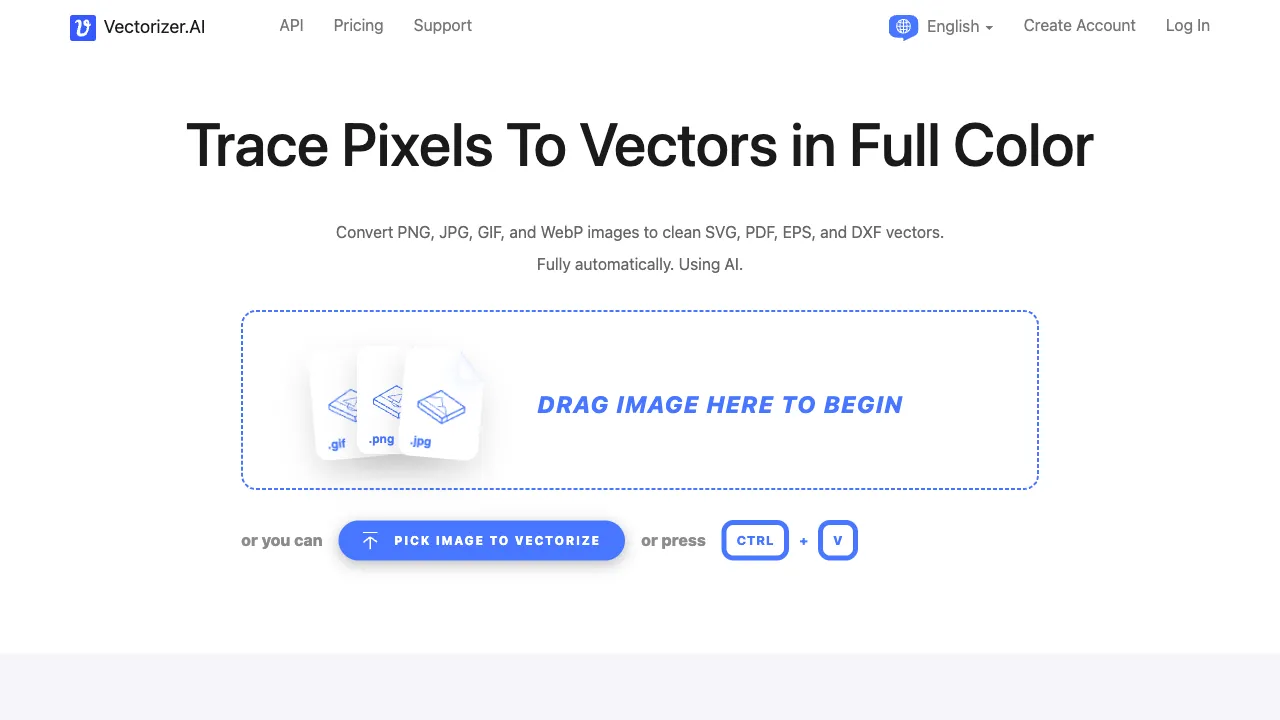
You have a PNG logo that needs to be sent to a print shop for large-format inkjet printing, but the print shop insists on a vector format (SVG or AI); you’ve found a bitmap icon you like and want to include it in your design, but it becomes blurry when enlarged; you have a scanned hand-drawn sketch and want to convert it into an editable vector line art. All these scenarios point to the same need: converting bitmaps to vectors. Vectorizer.AI specializes in this single task, and it does so quite well.
What is Vectorizer.AI?
Vectorizer.AI is an online AI-powered tool for converting bitmaps to vectors. Upload PNG or JPG images, and it automatically analyzes the image and converts it into an SVG vector file. The conversion quality is significantly better than traditional "image tracing" software.
The tool’s positioning is clear: it does one thing—bitmap-to-vector conversion. It does not generate images, nor does it offer editing features; it focuses exclusively on perfecting this one task.
Why Do You Need a Vector Conversion Tool?
First, let’s clarify the difference between bitmaps and vectors. Understanding this distinction is key to grasping the real problem Vectorizer.AI solves.
Bitmaps (PNG, JPG, GIF) are images composed of pixels. Each image has a fixed resolution, such as 100×100 pixels. When you enlarge a 100×100 image to 500×500 for display, the software can only guess and interpolate the missing data, resulting in blurriness and jagged edges—an unavoidable physical limitation.
Vectors (SVG, AI, EPS) are graphics described by mathematical formulas. A curve is not a cluster of pixels but rather "a Bézier curve from this point to that point." Therefore, no matter how much you zoom in, the edges remain sharp and clear, without any blurriness.
In design work, logos, icons, illustrations, and fonts typically require vector formats:
- Print materials (business cards, posters, display stands) need vectors because print dimensions may far exceed screen displays.
- Web icons (SVG) remain crisp on screens with different DPIs.
- Elements in design drafts need to be freely scalable.
- Special processes like laser cutting and screen printing require vector files.
However, many images only exist in bitmap versions, which is when you need to convert them to vectors.
Problems with Traditional Methods
Illustrator has an "Image Trace" feature, and Inkscape has a similar function; both can convert bitmaps to vectors. However, their results are often unsatisfactory in many scenarios:
- The traced paths are overly complex, with a massive number of nodes, resulting in large file sizes.
- Color transitions and detail handling are inadequate, requiring extensive manual cleanup.
- For images with gradients, shadows, or complex details, the tracing results are poor.
These traditional tools rely on color region detection algorithms, whereas Vectorizer.AI uses deep learning—AI understands the semantics and structure of the image rather than just scanning color blocks, resulting in higher conversion quality.
Core Advantages of Vectorizer.AI
AI Understanding of Image Structure
Rather than merely tracing color edges, Vectorizer.AI’s AI understands the logical relationships between shapes, lines, and gradients in the image, generating more "semantic" vector paths. For simple icons and logos, the output paths are clean, with a reasonable number of nodes, requiring minimal post-processing.
High-Quality Edge Processing
Bitmap edges consist of jagged pixel boundaries. Vectorizer.AI smooths these edges during conversion, producing vector images with fluid edge curves that require no manual adjustment.
Color Preservation
It supports full-color vector conversion, not just black-and-white line art. After converting a colored logo, each color region is correctly identified and separated; each region becomes an independent vector path that can be individually selected and modified in Illustrator.
Multiple Output Formats
Conversion results support exporting to SVG, PDF, EPS, DXF, PNG, and other formats, covering various use cases: SVG for web, PDF/EPS for print, and DXF for industrial scenarios like laser cutting.
Comparison with Other Tools
vs. Illustrator Image Trace: Illustrator is the most commonly used tool on designers’ desks, and its trace feature requires no separate software. However, AI tracing quality is significantly inferior to Vectorizer.AI for complex images, producing more complex paths that require more manual cleanup. For simple images, the difference is negligible; for complex images, Vectorizer.AI’s quality is clearly superior.
vs. Vector Magic: Vector Magic is another well-known online bitmap-to-vector tool, a legacy product with good quality. Vectorizer.AI leverages newer AI technology and has an advantage in detail handling. Both offer free tiers and paid options.
vs. Inkscape Tracing: Inkscape is free, open-source vector editing software that also includes tracing functionality, with quality similar to Illustrator. Vectorizer.AI’s AI capabilities are an advantage, and its operation is simpler (just upload), though it requires an internet connection.
vs. Adobe Express: Adobe Express offers basic vector conversion but is more suitable for non-professional users due to its limited features. Vectorizer.AI’s output quality better meets professional design needs.
Who Should Use Vectorizer.AI?
Graphic Designers and Brand Designers: Frequently need to convert PNG logos provided by clients into usable vector files. Vectorizer.AI is much faster than manual tracing in Illustrator and delivers better quality.
Print and Material Production: Print shops and advertising agencies often need to convert low-quality bitmap logos provided by clients into vectors for large-format inkjet printing and other scenarios.
E-commerce sellers: Convert logos or icons to vectors for use at different sizes, then check that edges, lettering and colors are retained.
Product Designers (UI/UX): Icon assets found online are usually in PNG format. Converting them to SVG allows free scaling within design drafts, and colors can be modified at will.
Laser Cutting and Engraving Users: Laser cutters require vector files (usually DXF or SVG). Vectorizer.AI’s DXF output format directly meets this need.
Creators Needing to Digitize Hand-Drawn Sketches: Scanned hand-drawn sketches can be converted to vectors, allowing for further processing in design software with easier color filling and modification.
Pricing
Vectorizer.AI offers:
- Free Tier: Limited free conversions with resolution restrictions on output, suitable for occasional use.
- Paid Tiers (Pay-per-use or Monthly Subscription): Unlimited conversions, high-resolution output, and full format support.
For users who only occasionally need conversion, the free tier is usually sufficient; for designers with heavy conversion needs, a monthly subscription is more cost-effective.
Practical Advice
Original image quality affects the conversion result: The higher the resolution, color clarity, and simplicity of the background in the source bitmap, the better the output. If the original image is blurry or has a complex background, the result will naturally be less optimal.
Simple images yield the best results: Logos, icons, and simple illustrations convert most effectively. Converting complex, photorealistic images to vectors is generally impractical and falls outside the intended use case of this tool.
Review and clean up in your design software: Even with high-quality AI conversion, it is advisable to import important files into Illustrator or Figma to verify path quality, especially for documents intended for print or commercial use.
Remove the background before converting: If your image has a white or unwanted background, remove it first using remove.bg or Photoshop before uploading for conversion. This results in a cleaner output that retains only the desired subject elements.
Vectorizer.AI is among the best tools available for bitmap-to-vector conversion, offering minimal friction and excellent results. For designers who frequently have this need, it is definitely worth bookmarking.